
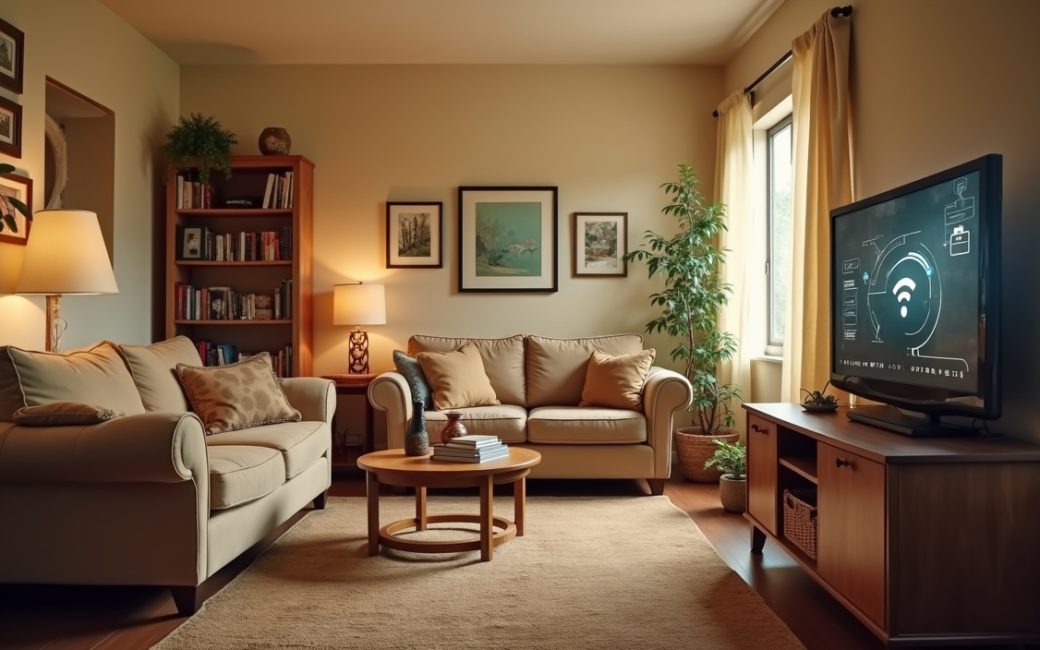
Household adds remote work, streaming and smart appliances
A home network that worked fine for browsing and email often buckles once it has to carry video calls, streaming, gaming, and a handful of app-controlled appliances at the same time. The internet plan hasn't changed, but the number of things asking it for bandwidth simultaneously has.
Shared bandwidth on the existing plan gets exhausted first at peak hours — evenings, or whenever multiple people are on calls at once — and the symptom is the same everywhere: video calls freeze, streams drop resolution, page loads stall.
Before spending money, separate two different problems: is the plan too slow for the load, or is the in-home network failing to deliver the speed the plan already provides? A simple check is to run a speed test with a device wired directly into the router, then run the same test over Wi-Fi in the room where the problem happens. If the wired result matches what the plan promises but the wireless result is much lower, the plan is fine and the fault is the local network — a case covered in the router-placement sections below. If both results come in low, the plan itself may be undersized for the household's simultaneous load, and moving fixed devices — game consoles, TVs, desktop PCs — onto Ethernet frees wireless capacity for phones and laptops rather than requiring an upgrade at all.
Router placed in one corner of the house
A router pushed into whichever corner has the incoming cable jack — often a basement, garage, or utility closet — puts the signal source as far as possible from the rooms that need it. Building materials, floors, and distance all cut into range, so a router in one corner cannot reliably reach rooms across the house or on another level.
The result is a dead zone: a room where devices show one or two signal bars, drop the connection mid-stream, or fail to connect to the network at all.
There are two fixes, and they solve different situations. Mesh nodes are the faster fix when rewiring isn't practical — added access points relay the signal room to room. Running Cat5e or Cat6 cable to a second access point is the more durable fix, because a wired backhaul doesn't lose throughput the way a wireless relay does. TechTarget's home-network setup guide frames router placement as one of the first steps in setting up a home network precisely because everything downstream — coverage, appliance pairing, streaming reliability — depends on getting that placement right before adding more hardware to compensate for it.
A smart appliance such as a Bosch dishwasher needs to be controlled remotely
Controlling an appliance from a phone means the appliance must be joined to the home Wi-Fi network and registered in a manufacturer app before any remote feature works. For Bosch and Siemens appliances this is the Home Connect app, which pairs the appliance to the household network and then to the user's account.
Pairing fails for two reasons that get skipped elsewhere. First, the appliance is physically out of range of the router or nearest access point — utility rooms and kitchens are frequently the farthest point from where a router was originally installed. Second, many appliances only support the 2.4GHz band, not 5GHz, so pairing stalls on a household network broadcasting a combined or 5GHz-only signal name. Home Connect's own device list is organized by appliance, not by band, so confirming which band a specific model supports has to happen before setup, not during it.
The fix is to bring the network to the appliance rather than the other way around — add a mesh node or extend Ethernet to a nearby access point in that room — and confirm the appliance is set up on the 2.4GHz network before opening the app to finish registration.
Home is being designed or renovated
Building or renovating is the point where cable runs and an equipment location get specified before walls close, rather than retrofitted afterward. Cat5e or Cat6 run to every fixed device location — TVs, desktops, access point locations in each level of the house — means coverage doesn't depend on a single router's range at all.
Guidance on building connectivity into a new home recommends deciding on a central equipment location and running structured cabling to it during framing, since pulling cable after drywall is far more disruptive. A pre-drywall checklist:
- Choose one equipment location central to the home's footprint, not wherever the incoming utility line happens to land.
- Run Cat5e/Cat6 to every room likely to hold a fixed device or wireless access point.
- Add at least one wired drop per floor for a mesh node, so backhaul doesn't rely on wireless relay.
- Label and terminate all runs before insulation and drywall go in.
Wi-Fi
Wi-Fi is the wireless link most household devices use to reach the router, and its range and reliability depend on the same variables — obstruction, distance, band — that cause the dead zones described above. A device connecting on 2.4GHz travels farther through walls but at lower speed; 5GHz is faster but drops off sooner, which is part of why appliances and routers don't always agree on which band to use.
Home connectivity
Home connectivity is the umbrella term for everything above: the ISP plan setting available speed, the router and any mesh nodes distributing that speed around the house, and the wired or wireless links each device uses to reach it. A reader troubleshooting a problem needs to know which layer they're diagnosing — plan, router placement, or a specific device's pairing — because each has a different fix.
Home network
A home network is the local network linking devices inside a dwelling, wired and wireless, sitting between the ISP connection and every device in the house. It's the layer that determines whether the speed a plan provides actually reaches a given room.
Ethernet / wired connection
Ethernet — typically Cat5e or Cat6 cable — is the wired link used for fixed devices and for backhaul between access points, and it doesn't suffer the range or interference problems wireless does. Where a device doesn't need to move, running a cable to it is usually the more reliable fix than adding another wireless node, as noted in guidance on mesh and wired network installation.
Start by running the wired-versus-wireless speed test in the room where the problem actually occurs — that single check points to whether the next step is a plan upgrade, a router move, a mesh node, or a cable run.